
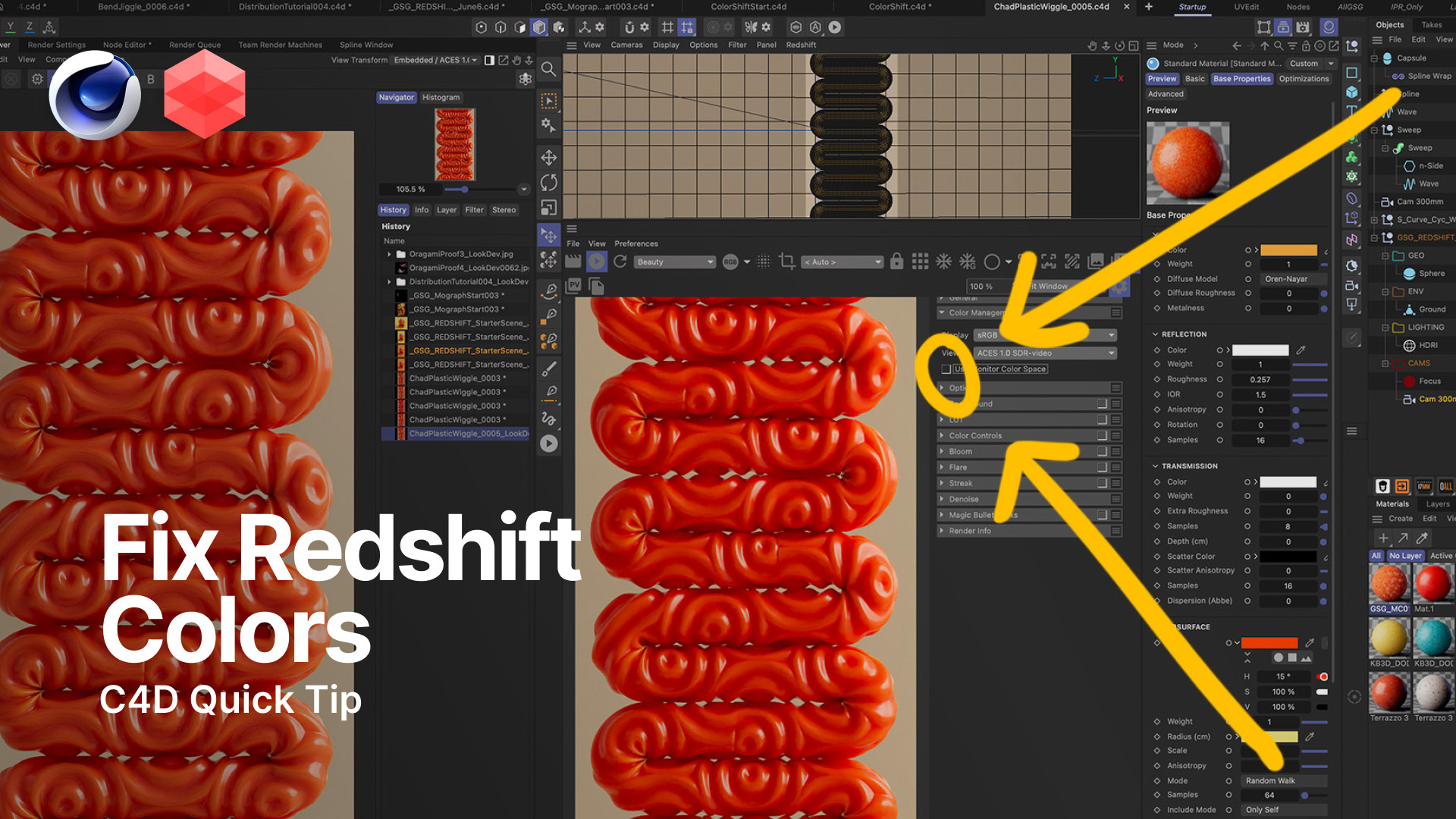
Why Your Redshift Renders Look Washed Out (And How to Fix It)
If your vibrant colors are turning pale and desaturated in your final Redshift renders, you aren't going crazy.
You just need to toggle one hidden setting.
There is nothing more frustrating than dialing in the perfect, saturated texture only to watch it lose all its punch the second you hit render. The secret to saving your sanity lies right inside your IPR settings: just click the gear icon and enable Use Monitor Color Space (or use the standalone toggle button directly in the viewer). While it's a mystery why this isn't always turned on by default (meaning you might have to manually check it for new scene files), turning it on instantly restores your rich colors so your final output actually matches what you see on screen.
Check out the quick tutorial video above to see exactly where this button is hiding and stop losing your mind over pale renders.


